

Invoices and credit notes
An invoice records what a customer owes for a period. A credit note reduces what they owe, or gives money back. This guide shows how to read an invoice, collect or record a payment, and correct an invoice the right way.
Open Invoices & Credit Notes in the business.
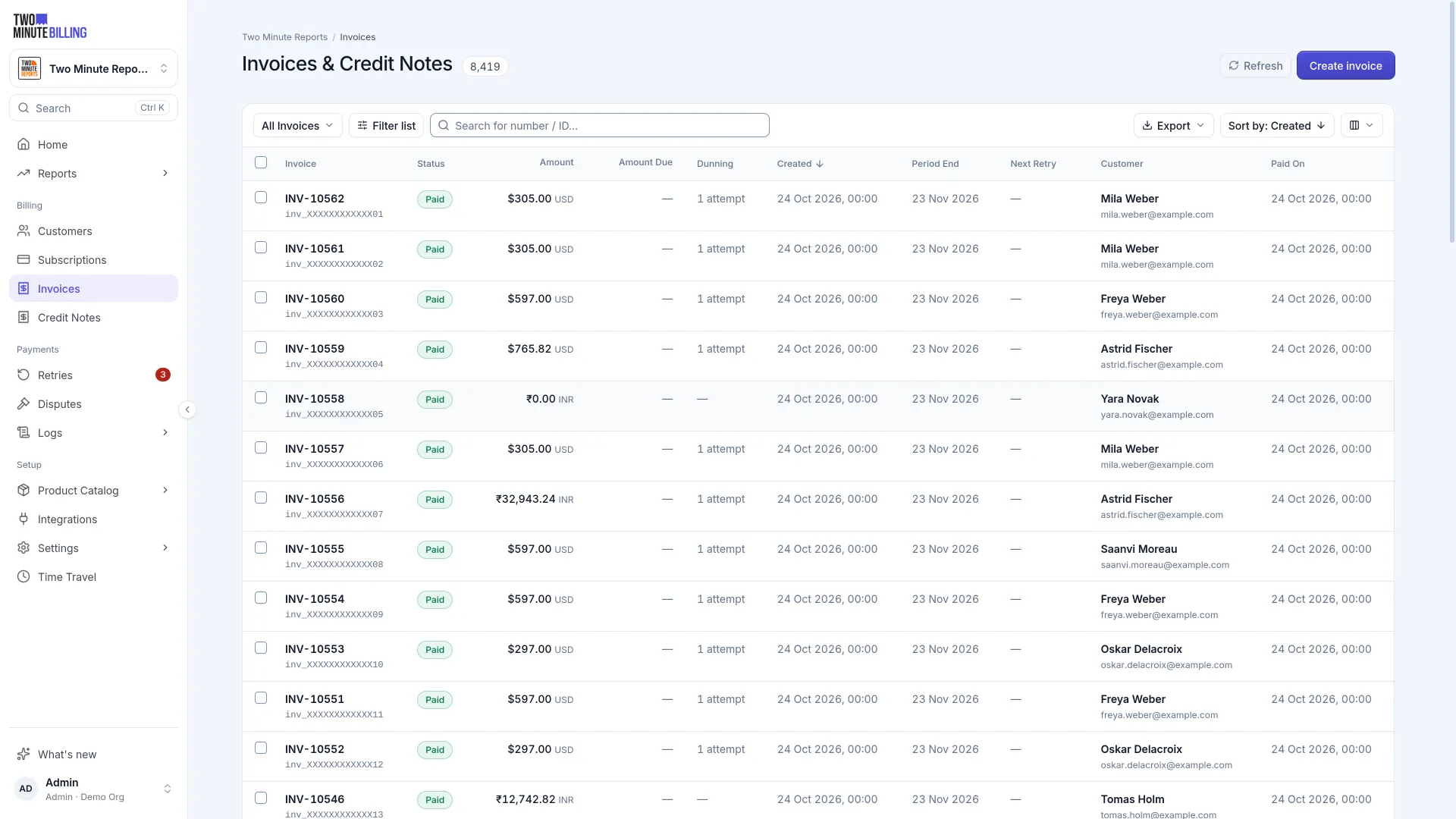
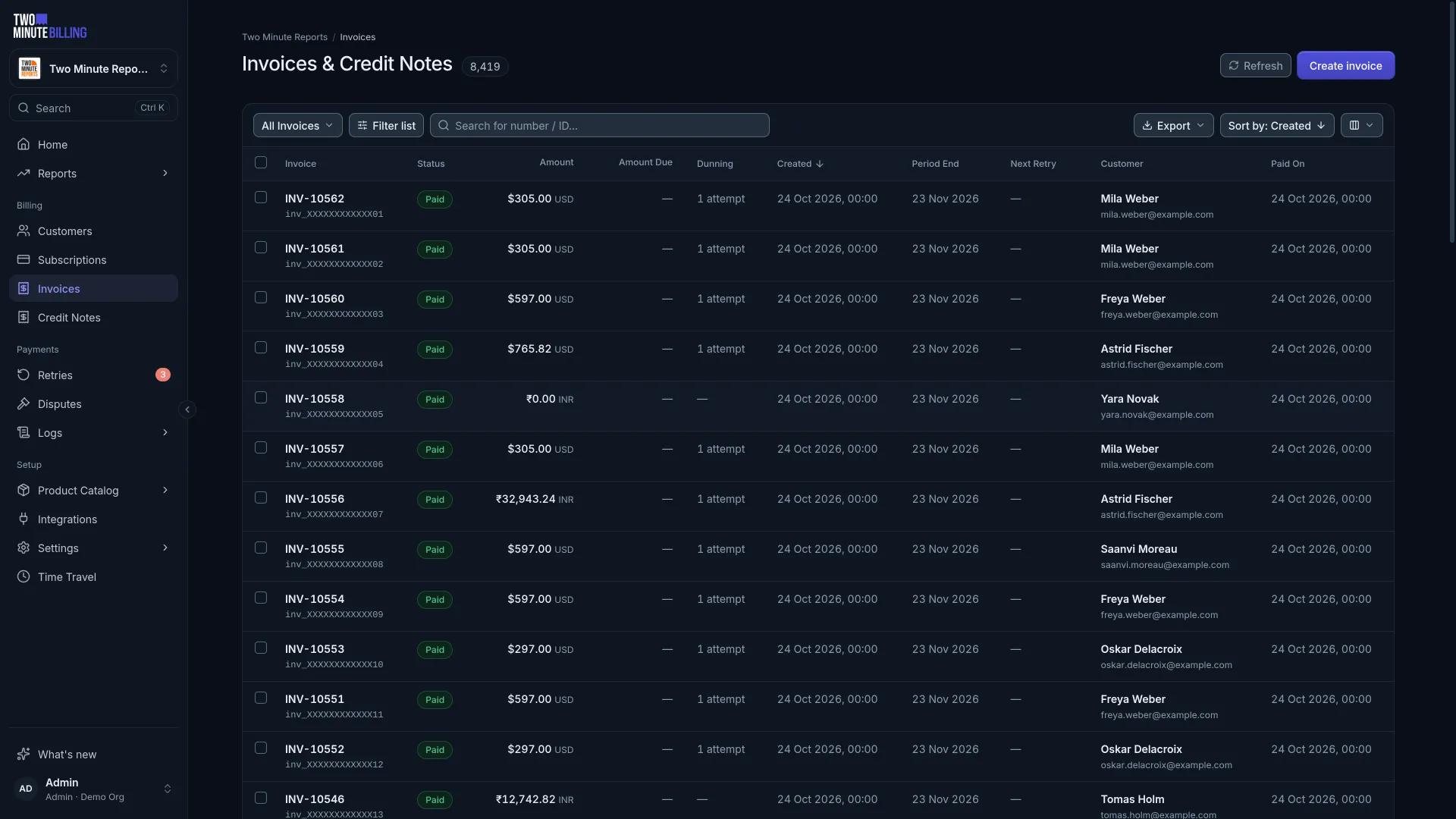
Read the statuses
| Status | What it means |
|---|---|
| Pending | Still open and collecting lines. Usage and charges are landing on it. Not yet a demand for payment. |
| Posted | Finalised. The lines, tax and total are fixed. |
| Payment due | Owed — past its due date, or collection failed. |
| Not paid | Collection failed and the retries ran out. |
| Paid | Settled. |
| Voided | Cancelled, with its accounting reversed. |
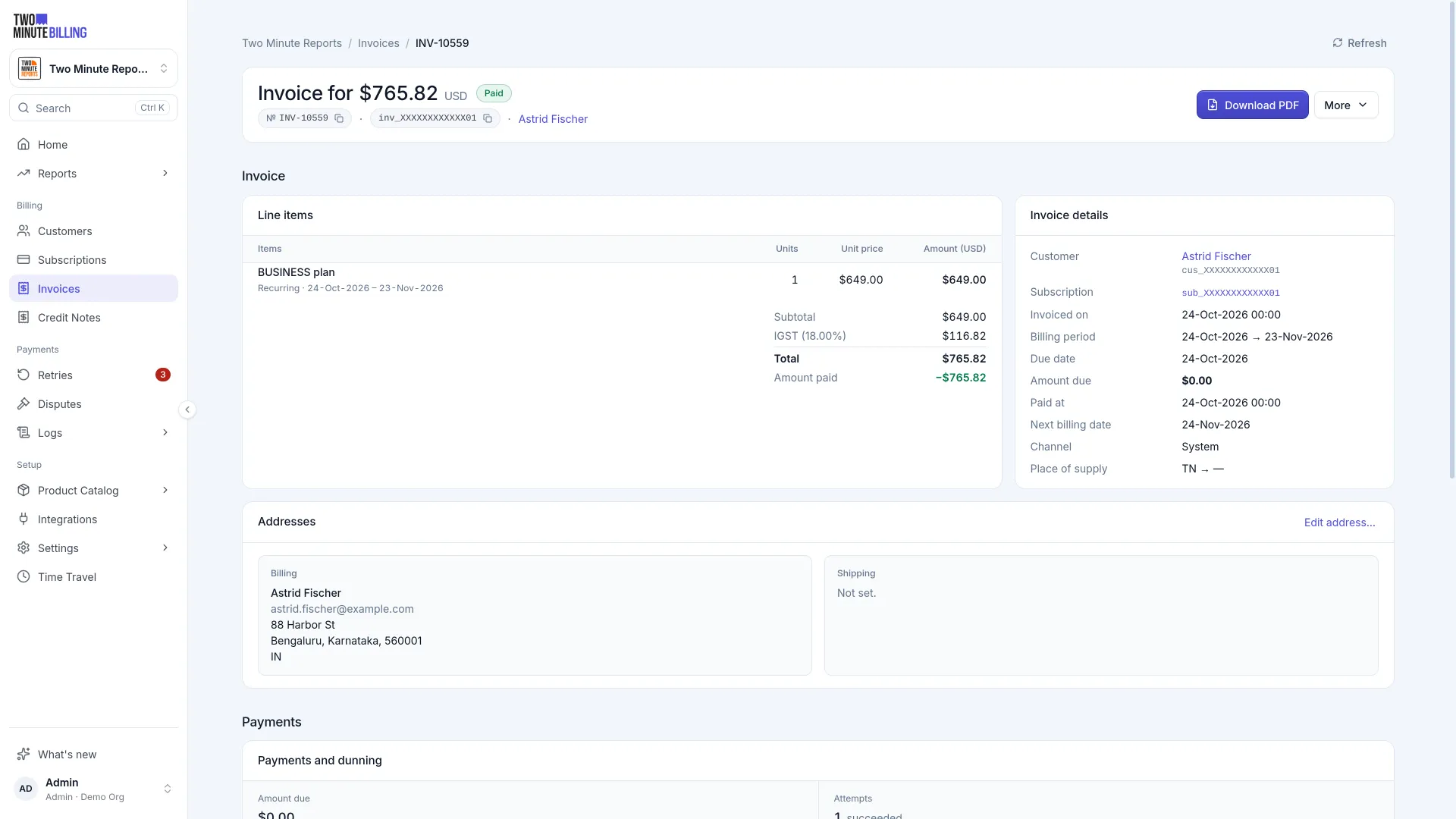
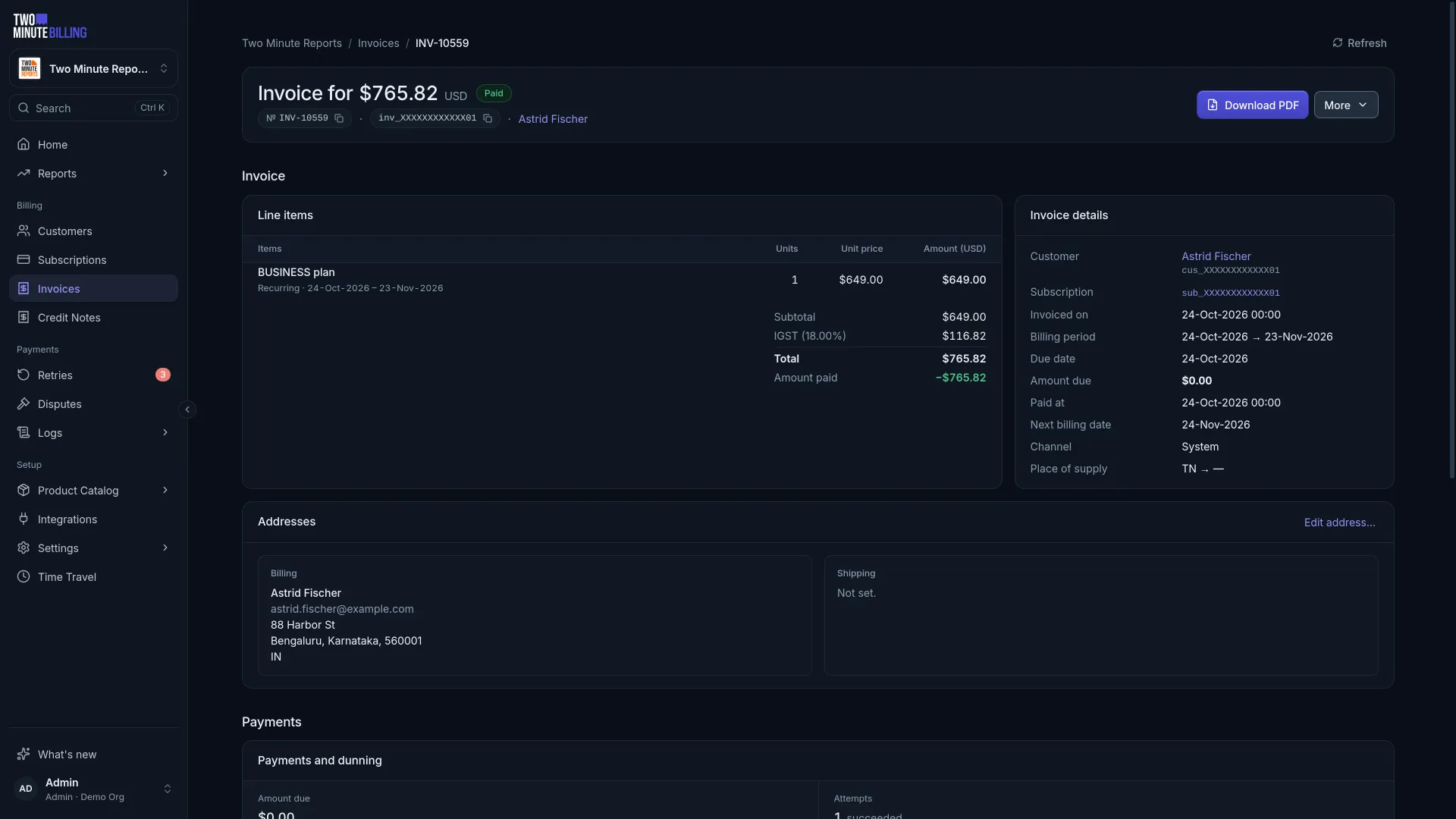
Collect a payment
Collect now charges the customer's saved card immediately. Use it when someone has just fixed their card and does not want to wait for the next scheduled retry.
Record a payment is for money that arrived outside the system — a bank transfer or a cheque. It marks the invoice paid without touching a card.
Collect several invoices at once
A payment request asks one customer for several open invoices together: one charge, or one link they pay once. Use it when a customer has fallen behind on a few invoices and wants to clear them in one go.
Open the customer
Select Request payment. The dialog lists the customer's open invoices with the amount due on each.
Select the invoices
Select up to 50, all in one currency. An invoice can be in only one open request at a time, and an invoice with a payment in progress cannot be added.
Select how to request payment
Charge now charges the total to a saved payment method that you select. Send a payment link emails the customer a link to pay the total in their portal. Leave Send to blank to use the customer's email. Invoices with manual payment can only be requested with a link.
The request then appears under Payment requests and on the customer page. On the request, Due now is recalculated each time you open it: an invoice paid, voided or written off another way drops out of the request, and when every invoice has dropped out the request is cancelled.
From the request you can:
- Charge it again, with the same or another saved payment method
- Record payment for money that arrived offline. It is spread over the invoices oldest first, and it cannot be more than the amount still due. Record anything extra as an excess payment on the customer.
- Send again, with an optional note added to the email
- Cancel request, with a reason that only your team sees
If a charge fails, the request stays open, shows the decline, and the customer is emailed the link. A failed charge on a request does not use up a dunning retry on the invoices. If the gateway later reports that the failed charge did go through, the money pays the request's invoices that are still owed, newest first, and only the rest is refunded. A request that nobody pays expires after 30 days.
Receipts
Each successful payment gets a numbered receipt: a record of money received. A receipt is not a tax invoice and has no tax lines. A payment request that is paid gets one receipt for the whole charge.
- Logs → Receipts in the business lists every receipt, with a PDF for each. The customer and payment request pages show their own receipts.
- Settings → Receipts sets the Number prefix (default
RCPT, soRCPT-12). Receipts are numbered in the order of their payments, a few seconds after each one, and you cannot change the counter. A new prefix applies to the next receipt we number. - Settings → Email notifications has Attach the receipt PDF to the payment confirmation email. It is off by default.
- Customers can download every numbered receipt from the portal.
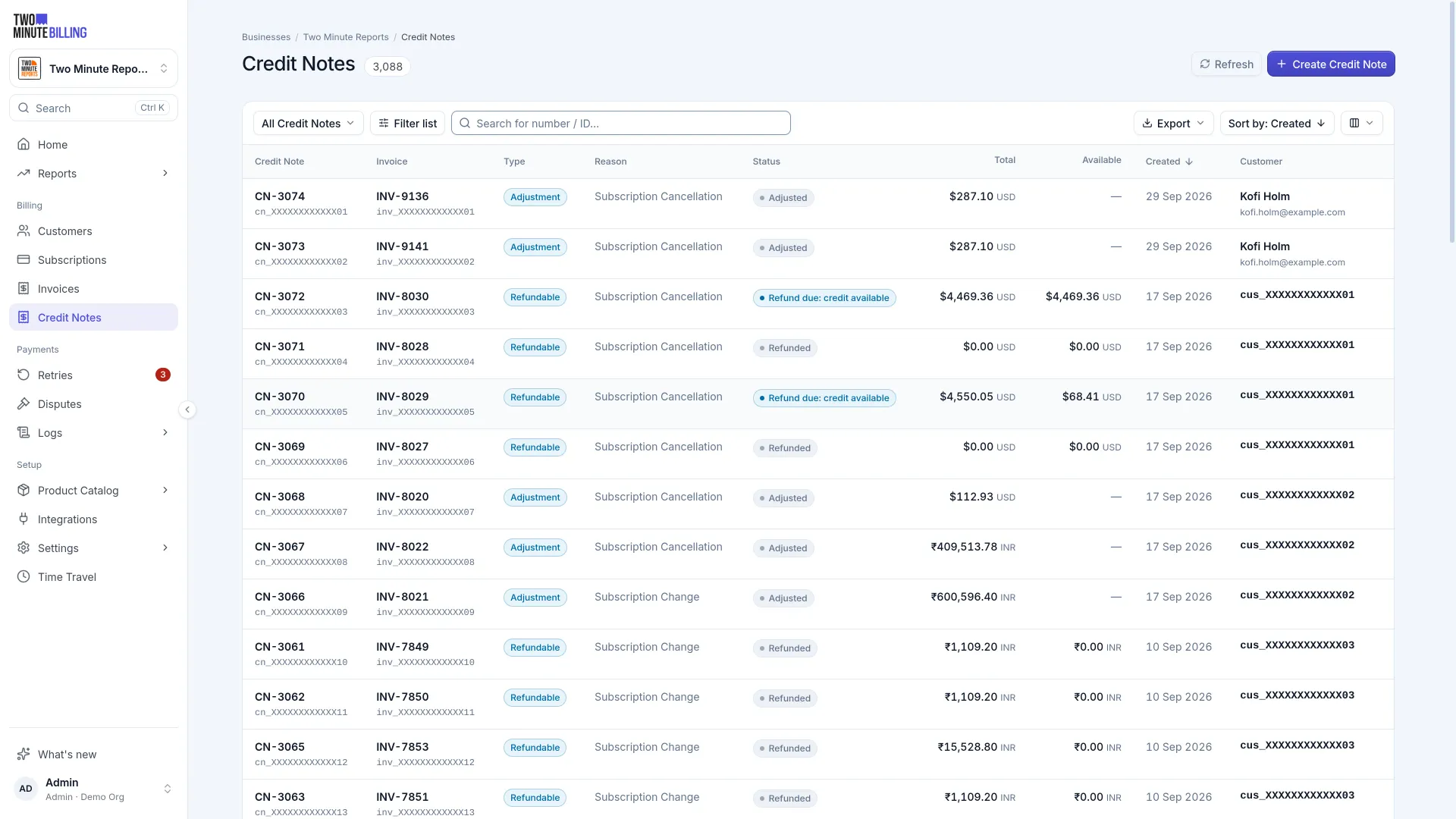
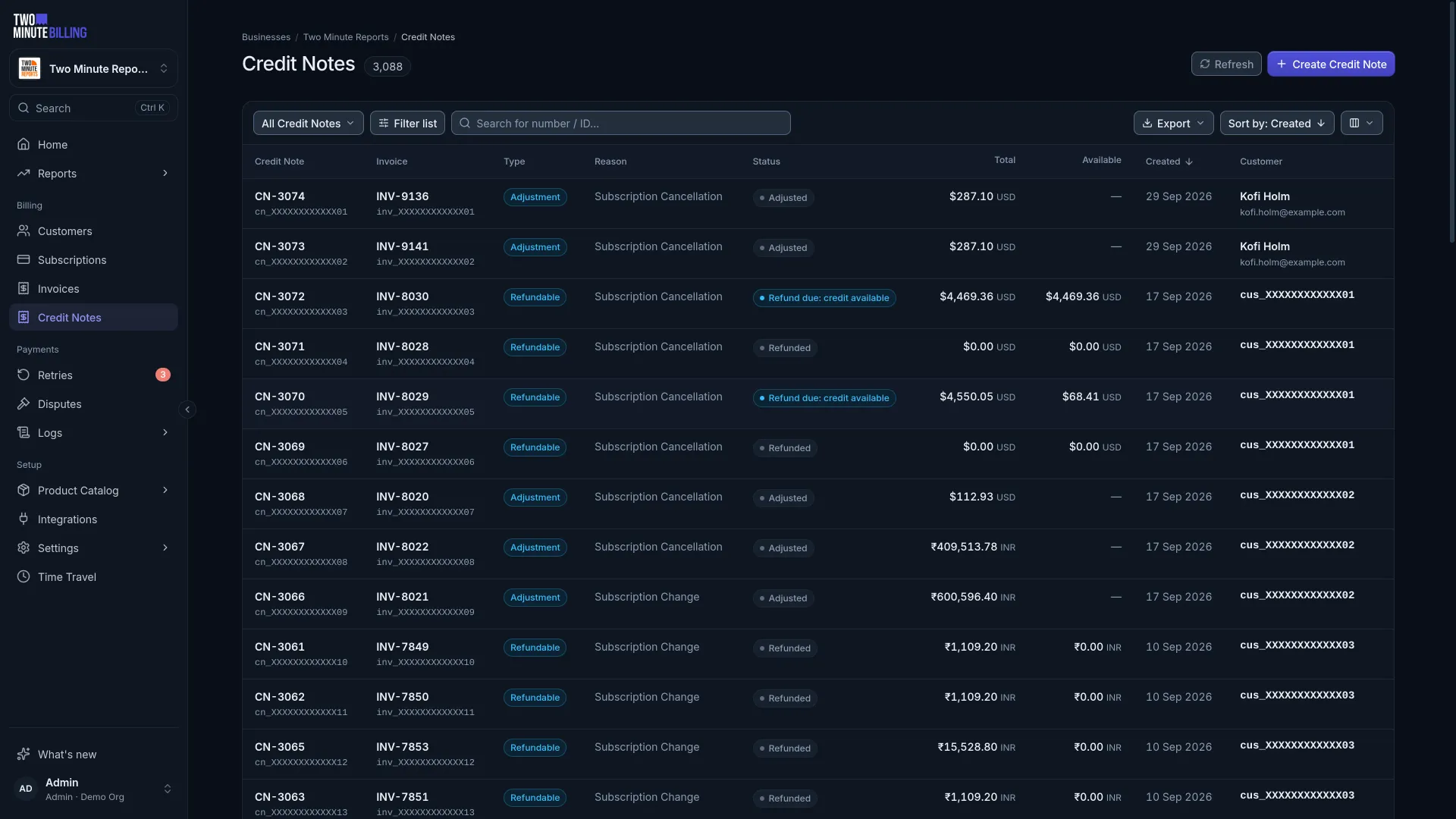
Give money back
Which tool depends on whether the invoice was paid.
| Situation | Use | What happens |
|---|---|---|
| Invoice is unpaid and they should owe less | Adjustment credit note | Reduces what is owed |
| Invoice was paid and you owe them money | Refundable credit note | Becomes credit on their account, which you can then refund to the card |
| You have given up on an unpaid invoice | Write off | Recorded as bad debt, with the reason kept |
Void versus credit note
Void cancels an invoice that should never have existed — raised against the wrong configuration, say. It reverses the accounting and returns any coupon the customer used, so a single-use code is not wasted on a cancelled document.
Credit note reduces or refunds an invoice that was correct at the time. Use this when the customer is owed money, not when the document was a mistake.
After voiding, Regenerate builds a fresh invoice for the same period once you have fixed the underlying setup.
Send an invoice
Every invoice is available as a PDF carrying your branding, and can be emailed to the customer and their additional contacts. You can resend one at any time.
Related
Subscriptions
Add customers, subscribe them to plans, change what they pay mid-cycle, and pause or cancel, with proration worked out and shown before you confirm.
Failed payments
Set a retry schedule for declined cards, decide what happens when retries run out, and work the retry queue, so you keep revenue that failed payments risk.