
Adyen
Two Minute Billing charges cards through your Adyen merchant account. SEPA Direct Debit in EUR is coming soon. When a customer pays an invoice now, the payment form also shows Google Pay if you add it in Adyen. In Safari, the customer can also select Apple Pay and pay on an Adyen payment page. You keep your Adyen rates, and Adyen pays out to your bank as usual.
Before you start
- An Adyen account. The test Customer Area is at
ca-test.adyen.comand the live one atca-live.adyen.com. Each has its own API credentials: connect the test credential to a test business and the live credential to a live business. - The merchant account that takes the payments. Two Minute Billing charges in the currencies that this merchant account accepts.
- For SEPA Direct Debit: a business that bills in EUR, and the Customer Area role Change payment methods, to add SEPA Direct Debit to the merchant account.
- For Google Pay: the Customer Area role Change payment methods, to add Google Pay to the merchant account. Live Google Pay also needs a Google Merchant ID from the Google Pay & Wallet Console.
- For Apple Pay: the same role, to add Apple Pay to the merchant account. Adyen's own Apple Pay certificate is used, so you do not need an Apple developer account.
- You need permission to manage payment gateways in Two Minute Billing. The owner and admin roles have it.
Find your API keys
In the Adyen Customer Area, open Developers → API credentials and select your credential, or click Create new credential and select Web service user. On the credential:
- Under Server settings → Authentication, open the API key tab and click Generate API key. Copy the key at once: Adyen does not show it again.
- Under Client settings → Authentication, open the Client key tab and click Generate client key.
- Under Allowed origins, add the address where your customers pay.
- Under Permissions, select the roles listed under Permissions.
- Click Save changes.
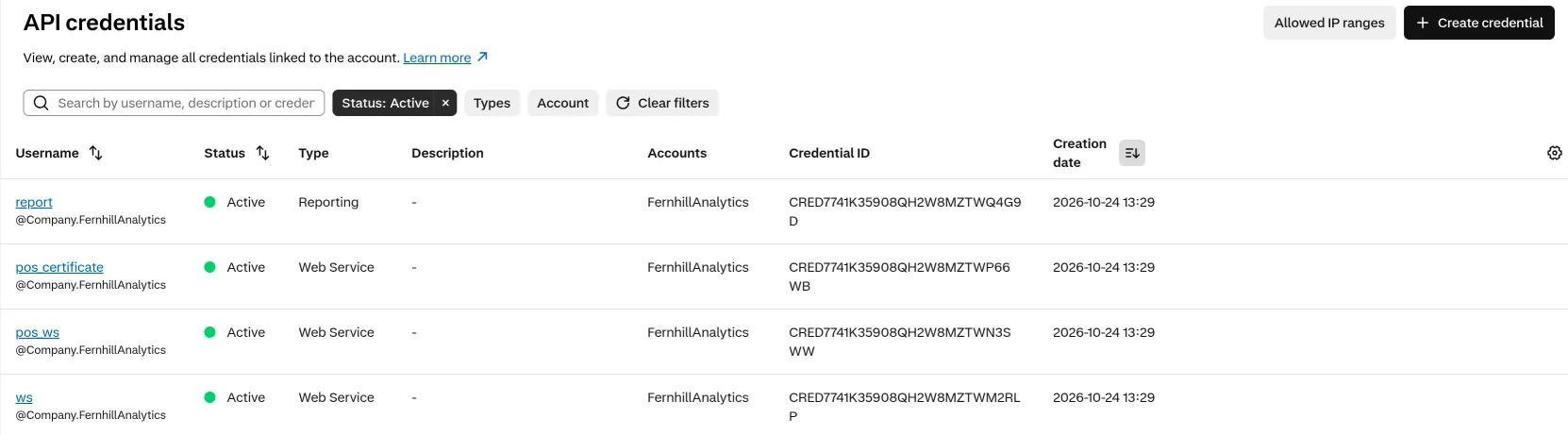
You need four values:
| Field | Where to find it | Looks like |
|---|---|---|
| API Key | Adyen Customer Area → Developers → API credentials. The credential needs the roles Merchant PAL webservice role, Checkout webservice role, Merchant Recurring role, API tokenise payment details and Management API — Webhooks read and write. | — |
| Client Key | On the same API credential, under Client settings. Add the origin of your payment pages to Allowed origins. The account health check reads this list. | test_… or live_… |
| Merchant Account | The code of the merchant account that takes the payments. | YourCompanyECOM |
| Live URL Prefix | Developers → API URLs → Prefix, for a live account. For a test account, type test. | 1797a841fbb37ca7-YourCompany |
Permissions
| Role | On by default? | Two Minute Billing uses it to |
|---|---|---|
| Merchant PAL webservice role | Yes | Process payments at all: without it the credential cannot make any payment |
| Checkout webservice role | Yes | Charge, capture, cancel and refund payments, and show the card form |
| Merchant Recurring role | Yes | Save cards and SEPA bank accounts, and charge renewals with them |
| API tokenise payment details | No | List and remove a customer's saved cards and bank accounts |
| Management API — Webhooks read and write | Yes | Register the webhook and make its HMAC key |
Also add the address where your customers pay under Allowed origins.
SEPA Direct Debit needs no other role. Apple Pay uses a payment link (/paymentLinks), which
the Checkout webservice role covers. Google Pay needs no other role in test. Before you take live Google Pay payments, Adyen asks
you to make sure that the live credential also has the API Clientside Encryption Payments
role.
Connect it in Two Minute Billing
- Open Settings → Payment gateways and click Add gateway.
- Select Adyen and paste the API Key, the Client Key, the Merchant Account and
the Live URL Prefix. For a test business, type
testas the prefix. - Select the currencies and the payment methods this account handles.
- Click Create gateway account.
Then open the account and click Check credentials. Healthy means Adyen accepted the key. The check also reads the credential's allowed origins and tells you if your payment address is missing.
The payment methods you can turn on for Adyen:
- Cards — Pay now also shows Google Pay. Add Google Pay to your merchant account in the Adyen Customer Area. A live account also needs your Google Merchant ID in the live Customer Area. In Safari, pay now also shows Apple Pay, which opens an Adyen payment page. Add Apple Pay to your merchant account in the Customer Area. Apple Pay is not saved for renewals.
- Direct Debit (SEPA) (coming soon) — EUR only. Add SEPA Direct Debit to your merchant account in the Adyen Customer Area. Adyen limits each debit to EUR 500 until Adyen support raises the limit. We email the payer before each renewal debit. A bank return makes the invoice due again.
Add Google Pay
Google Pay shows only when a customer pays an invoice now. It is a card payment to Adyen, so refunds and disputes work as they do for cards. Two Minute Billing does not save Google Pay for renewals: to pay renewals automatically, the customer saves a card.
- In the Adyen Customer Area, switch to your merchant account.
- Go to Payments → Payment methods and select Request payment methods.
- Select Google Pay, click Add, apply it to This merchant account and click Submit request. Adyen usually adds it within one day.
You do not change anything in Two Minute Billing. When Google Pay is active on the merchant account, the payment form shows it.
Add Apple Pay
Apple Pay shows only when a customer pays an invoice now, in a browser that can pay with Apple Pay (Safari with a card in Apple Wallet). The customer selects Apple Pay, pays on an Adyen payment page and comes back to the portal. Your domain does not need Apple Pay verification: the payment page is on Adyen's domain and uses Adyen's Apple Pay certificate.
- In the Adyen Customer Area, switch to your merchant account.
- Go to Payments → Payment methods and select Request payment methods.
- Select Apple Pay, click Add, apply it to This merchant account and click Submit request.
Add SEPA Direct Debit
Coming soon. SEPA Direct Debit on Adyen is not available yet. We did not complete its tests.
SEPA Direct Debit debits a customer's bank account in EUR. The customer enters the account holder name and the IBAN when they save a payment method, and accepts the mandate in the Adyen payment form. Renewals then debit that account.
- In the Adyen Customer Area, switch to your merchant account.
- Go to Payments → Payment methods and select Request payment methods.
- Select SEPA Direct Debit, apply it to This merchant account and click Submit request.
- In Two Minute Billing, open the Adyen gateway account and turn on Direct Debit (SEPA). The business must bill in EUR.
What to know before you turn it on:
- Adyen limits each SEPA debit to EUR 500. To debit more, ask Adyen support to raise the limit.
- We send the notice before each renewal debit. The SEPA rules require that the payer gets a notice at least one day before each debit. Two Minute Billing emails the customer two days before each renewal debit, with the amount and the date. Adyen does not send this notice.
- The creditor on the payer's bank statement is Adyen by default. Adyen debits with its own
SEPA creditor identifier,
NL48ZZZ342764500000. To use your own creditor identifier or name, ask Adyen support. - Adyen marks the debit as paid when it sends it to the bank. The invoice is marked paid at once. If the bank returns the debit (for example, not enough money or a closed account), the invoice is due again and your retry settings apply.
- A customer can ask their bank for the money back. For 8 weeks after a debit, no reason is needed; for 13 months, if they say they did not authorize it. These claims show in Disputes as lost: you cannot contest them. The invoice stays paid, and Two Minute Billing does not debit the customer again by itself.
- Refund a SEPA debit only after it settles. Adyen holds a SEPA refund for one week after the debit settles, and a customer who also claims the money from their bank can get it twice.
- A customer cancels a mandate at their bank. Adyen learns of it only when a later debit comes back. That debit is then handled as a bank return.
Currencies
Two Minute Billing offers these 135 currencies on Adyen:
AED, ALL, AMD, AOA, ARS, AUD, AWG, AZN, BAM, BBD, BDT, BHD, BMD, BND, BOB, BRL, BSD, BWP, BYN, BZD, CAD, CHF, CLP, CNY, COP, CRC, CVE, CZK, DJF, DKK, DOP, DZD, EGP, ETB, EUR, FJD, FKP, GBP, GEL, GHS, GIP, GMD, GNF, GTQ, GYD, HKD, HNL, HTG, HUF, IDR, ILS, INR, IQD, ISK, JMD, JOD, JPY, KES, KGS, KHR, KMF, KRW, KWD, KYD, KZT, LAK, LKR, LYD, MAD, MDL, MKD, MMK, MNT, MOP, MRU, MUR, MVR, MWK, MXN, MYR, MZN, NAD, NGN, NIO, NOK, NPR, NZD, OMR, PAB, PEN, PGK, PHP, PKR, PLN, PYG, QAR, RON, RSD, RUB, RWF, SAR, SBD, SCR, SEK, SGD, SHP, SLE, SOS, SRD, STN, SVC, SZL, THB, TND, TOP, TRY, TTD, TWD, TZS, UAH, UGX, USD, UYU, UZS, VND, VUV, WST, XAF, XCD, XCG, XOF, XPF, YER, ZAR, ZMW
Your merchant account takes the currencies that Adyen set up for your account.
If you leave Currencies empty on the gateway account, the account takes each currency of your business that is on this list.
Webhooks
Adyen tells Two Minute Billing about things that happen after a charge: a refund, a capture, a chargeback, a SEPA bank return. Adyen waits at most 10 seconds for an answer, so Two Minute Billing checks the HMAC signature, stores the webhook and answers at once. It applies the webhook a moment later, and tries again by itself if that fails.
Two Minute Billing registers the webhook with Adyen for you when you save the account. Nothing to copy.
If the gateway account page shows the webhook as not configured:
- Click “Register with Adyen” on the gateway account page. We create the webhook and keep its HMAC key.
- The API credential needs the role Management API — Webhooks read and write.
Test it
In your test business, create a customer and save the test card 4111 1111 1111 1111 with the
expiry date 03/2030 and the CVC 737. Collect an invoice: it is marked paid, and Logs shows
the call to Adyen and Adyen's answer.
To test SEPA Direct Debit, use a test business that bills in EUR and turn on Direct Debit (SEPA) on the Adyen gateway account. In the customer portal, add a payment method, select SEPA Direct Debit and enter one of Adyen's test accounts:
| Account holder | IBAN |
|---|---|
| A. Klaassen | NL98ABNA0410108103 |
| W. Hurth | AT141953000016243818 |
| A. Grand | FR7618206000103056966400117 |
Collect an invoice: it is marked paid, and the transaction shows SEPA Direct Debit under Paid with. Check the payment in the test Customer Area under Payments → Payment list.
To test Google Pay, sign in to a Google account in Chrome and join Google's test card suite. Open an invoice in the customer portal, click Pay now and select Google Pay. Select a test card in the Google Pay sheet. The invoice is marked paid. Google Pay is a card payment, so the transaction shows Card under Paid with. Without the test card suite, Adyen maps a real card in your Google account to an Adyen test card of the same brand, and does not charge it.
To test Apple Pay, use Safari on a device that has an Apple sandbox tester account with one of Apple's test cards in Wallet. Open an invoice in the customer portal, click Pay now, select Apple Pay and click Continue. Pay on the Adyen page, then click Continue to come back. The invoice is marked paid when Adyen's webhook arrives, usually in a few seconds.
Go live
- Sign in to the live Customer Area at
ca-live.adyen.com. Make an API credential there with the same roles, a live client key and the address where your customers pay under Allowed origins. Live origins must usehttps. - Copy your live URL prefix from Developers → API URLs → Prefix.
- In your live business, add Adyen with the live API Key, Client Key, Merchant Account and Live URL Prefix.
- Two Minute Billing registers a separate webhook for live. Check it under Developers → Webhooks in the live Customer Area.
- For SEPA Direct Debit: request SEPA Direct Debit in the live Customer Area too. Adyen reviews live requests before it turns the method on.
- For Google Pay: add Google Pay to the live merchant account and enter your Google Merchant ID in the live Customer Area. In the Google Pay & Wallet Console, request production access and add the domain where your customers pay. Adyen does not add the domain for you, and live Google Pay shows only on the domains that you add.
- For Apple Pay: add Apple Pay to the live merchant account in the live Customer Area.
Troubleshoot
- Check credentials says "We could not check the credentials." with "Adyen refused the API key". The API key is wrong, it belongs to the other environment, or the credential has no Checkout webservice role. Generate a new key on the credential and update the gateway account.
- Check credentials says "Correct the settings below." with "Allowed origins of the API credential does not include …". Customers cannot open the card form. Add the address it names under Allowed origins on the credential, save, wait one minute and click Check credentials again.
- A live account says "An Adyen live account needs its live URL prefix". Enter the prefix
from Developers → API URLs → Prefix in the live Customer Area. A live account also needs a
client key that starts with
live_. - The webhook cannot be registered: "The Adyen API credential cannot manage webhooks". Add the role Management API — Webhooks read and write to the credential, then follow the steps under Webhooks.
- The payment form shows no Google Pay. Google Pay is not active on the merchant account yet, the customer's browser has no Google Pay wallet, or (live) the domain is not in the Google Pay & Wallet Console. Google Pay never shows when a customer saves a card.
- Pay now shows no Apple Pay. The customer's browser cannot pay with Apple Pay (it is not Safari, or Apple Wallet has no card). Apple Pay never shows when a customer saves a card.
- The customer sees "a problem with the payment configuration" after selecting Apple Pay. Adyen refused the payment link. Logs shows Adyen's answer. Usually Apple Pay is not active on the merchant account yet: add it, as in Add Apple Pay.
- The payment form shows no SEPA Direct Debit. SEPA Direct Debit is not active on the merchant account yet, Direct Debit (SEPA) is off on the gateway account, or the business does not bill in EUR.
- A SEPA debit fails above EUR 500. That is Adyen's default limit for each debit. Ask Adyen support to raise it.
- A paid invoice is due again. The customer's bank returned a SEPA debit. Logs shows the
return reason, for example
AM04(not enough money) orAC04(account closed). - Live Google Pay fails with the error
OR_BIBED_11. Google has not approved your setup yet. Finish the production access request in the Google Pay & Wallet Console.
Related
Checkout.com
Connect your Checkout.com account to Two Minute Billing: find your keys, processing channel, API prefix and entity, connect them, and let Two Minute Billing register the webhook. Cards, and Google Pay on pay now.
Mollie
Connect your Mollie account to Two Minute Billing: find your API key and connect it. No webhook to set up. Cards, SEPA Direct Debit and PayPal.