
Braintree

Two Minute Billing charges saved cards, PayPal accounts and Venmo accounts through your Braintree account. You keep your Braintree rates, and Braintree pays out to your bank as usual.
Before you start
- A Braintree sandbox account to test with, and a production account to go live.
- Braintree has a separate sandbox and production Control Panel, with different API keys and a different merchant ID. Connect the sandbox values to a test business and the production values to a live business.
- Each Braintree merchant account settles in one currency. Find the merchant account ID for each currency you sell in.
- You need permission to manage payment gateways in Two Minute Billing. The owner and admin roles have it.
- PayPal (optional): your PayPal business account must be linked to Braintree. See Turn on PayPal, Venmo, 3D Secure and the account updater.
- Venmo (optional): only for a business in the United States that charges in US dollars. Braintree turns it on for your merchant account.
- 3D Secure (optional): if it is on in your Braintree account, buyers confirm their card with their bank when they save it or pay now. Renewals do not ask the buyer again.
Find your API keys
Sign in to the Braintree Control Panel for the environment you are connecting: sandbox or production. Click the gear icon at the top right and select API. Under API Keys, click View in the Private Key column. If there is no key, click Generate New API Key.
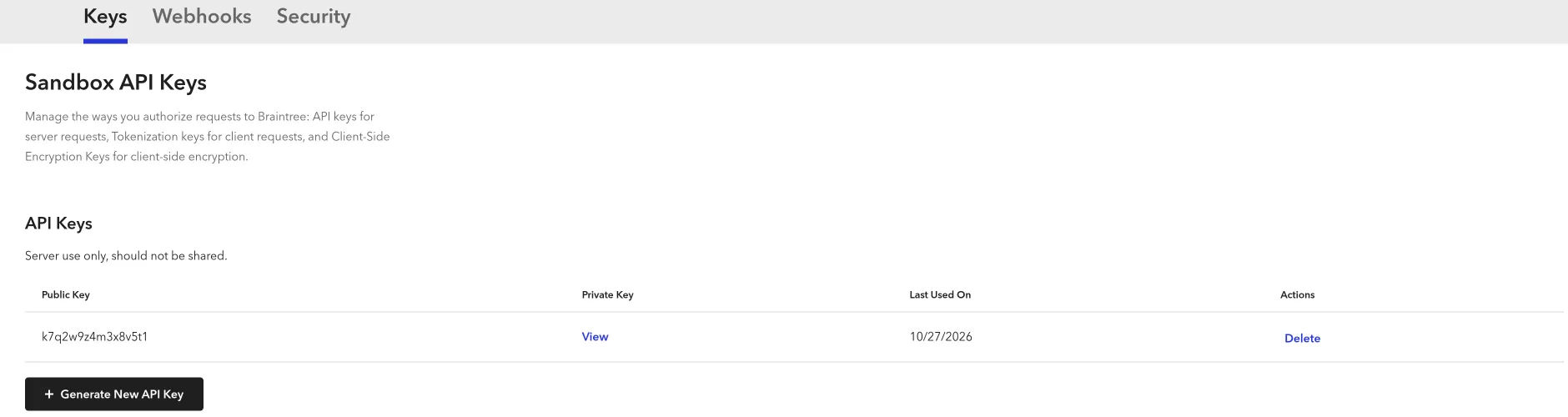
The Merchant ID is on the same API page. For the merchant account IDs, click the gear icon and select Business: they are in the first column under Merchant Accounts.
You need these values:
| Field | Where to find it | Looks like |
|---|---|---|
| Merchant ID | Braintree Control Panel → Settings → API. | — |
| Public Key | On the same page, under API Keys. | — |
| Private Key | On the same page. Click View in the Private Key column. | — |
| Currencies and merchant accounts | Optional. Each Braintree merchant account settles in one currency. Type the currency of your default merchant account, for example EUR. To charge in more currencies, add CURRENCY=merchant account ID for each one, separated by commas. If you leave this field empty, we charge in USD on your default merchant account. | USD=fernhill_usd, EUR=fernhill_eur |
For example, USD=fernhill_usd, EUR=fernhill_eur charges US dollars on one merchant account
and euros on the other. Select the same currencies on the gateway account.
Permissions
| Braintree role permission | Two Minute Billing uses it to |
|---|---|
| Create Sales | Charge saved cards |
| Submit Sales for Settlement | Capture an authorized payment |
| Void Transactions | Cancel a payment before it settles |
| Credit Previous Transactions (Refunds) | Refund payments |
| Manage Customers and Payment Methods | Make customers and save and remove cards |
| View Transactions and View Payment Methods | Read payments and saved cards |
| Search Transactions and Download Transactions with Masked Payment Data | Find refunds made in Braintree, and payments whose answer was lost on the way |
The user must also have access to every merchant account you enter under Currencies and merchant accounts.
Webhook: you add the webhook by hand. The user who adds it needs the Manage Webhooks permission.
PayPal, Venmo, 3D Secure and the account updater use the same permissions. They need no other role permission: you turn them on for your Braintree account instead.
Turn on PayPal, Venmo, 3D Secure and the account updater
| Feature | What to do in Braintree | What happens if it is off |
|---|---|---|
| PayPal | In the Control Panel, go to Settings → Account Settings → Payment Methods → PayPal. Link your PayPal business account (in the sandbox: Link Sandbox, with a PayPal sandbox business account). | Buyers do not see the PayPal button. |
| Venmo | Ask Braintree to turn on Venmo for your US dollar merchant account. | Buyers do not see the Venmo button. A Venmo account saved before fails at the first charge. |
| 3D Secure | Ask Braintree to turn it on, then set your rules under Settings → Fraud Management → 3D Secure Rules. | Cards are saved and charged without 3D Secure. |
| Account updater | Ask Braintree to turn it on. It is for businesses in the US or that sell mostly to US buyers, and for Visa, Mastercard and Discover cards. | New card numbers and expiry dates do not come in. |
If a buyer cannot complete 3D Secure, Two Minute Billing does not save the card or take the payment. It follows Braintree's own list of 3D Secure results to refuse. A card that cannot use 3D Secure at all (for example, the bank does not take part) is saved and charged as usual.
Connect it in Two Minute Billing
- Open Settings → Payment gateways and click Add gateway.
- Select Braintree and paste the Merchant ID, the Public Key and the Private Key. Type your currencies and merchant accounts.
- Select the currencies and the payment methods this account handles.
- Click Create gateway account.
Then open the account and click Check credentials. Healthy means Braintree accepted the keys. The check does not test the merchant accounts: a wrong merchant account ID shows at the first charge in that currency. It does not test PayPal or Venmo either: if a method is not on in Braintree, buyers do not see its button.
The payment methods you can turn on for Braintree:
- Cards — If 3D Secure is on in your Braintree account, the buyer confirms the card with the bank.
- PayPal — Link your PayPal business account in the Braintree Control Panel first.
- Venmo — US businesses only, USD only. Ask Braintree to turn on Venmo for your merchant account first.
Currencies
Two Minute Billing offers these 126 currencies on Braintree:
AED, AMD, AOA, ARS, AUD, AWG, AZN, BAM, BBD, BDT, BIF, BMD, BND, BOB, BRL, BSD, BWP, BYN, BZD, CAD, CHF, CLP, CNY, COP, CRC, CVE, CZK, DJF, DKK, DOP, DZD, EGP, ETB, EUR, FJD, FKP, GBP, GEL, GHS, GIP, GMD, GNF, GTQ, GYD, HKD, HNL, HTG, HUF, IDR, ILS, INR, ISK, JMD, JPY, KES, KGS, KHR, KMF, KRW, KYD, KZT, LBP, LKR, LRD, LSL, MAD, MDL, MKD, MNT, MOP, MUR, MVR, MWK, MXN, MYR, MZN, NAD, NGN, NIO, NOK, NPR, NZD, PAB, PEN, PGK, PHP, PKR, PLN, PYG, QAR, RON, RSD, RUB, RWF, SAR, SBD, SCR, SEK, SGD, SHP, SOS, SRD, SVC, SZL, THB, TJS, TOP, TRY, TTD, TWD, TZS, UAH, UGX, USD, UYU, UZS, VES, VND, VUV, WST, XAF, XCD, XOF, XPF, YER, ZAR
Each merchant account takes one currency. For each other currency, you need a different merchant account.
Some payment methods take one currency only:
| Payment method | Currency |
|---|---|
| Venmo | USD |
If you leave Currencies empty on the gateway account, the account takes each currency of your business that is on this list.
Webhooks
Braintree tells Two Minute Billing about disputes, about payments that settle or fail to settle, about PayPal and Venmo accounts that a buyer disconnects, and about cards that the account updater changes.
Braintree does not let Two Minute Billing register the webhook, so you add it in Braintree yourself.
- In the Braintree Control Panel, go to Settings → Webhooks → Create New Webhook.
- Paste the notification URL from the gateway account page.
- Select all Disputes events, the Payment Method Revoked By Customer event and the Account Updater Daily Report event.
- If the list shows Refund Failed, select it.
- If the list shows Transaction Settled and Transaction Settlement Declined, select them. The list shows them only when ACH or SEPA Direct Debit is enabled on your merchant account.
- Do not select subscription events. Then click Create Webhook.
- Your API keys sign the events. You do not need a webhook secret.
A refund made in the Braintree Control Panel, or a payment declined at settlement, does not come by webhook. Two Minute Billing finds it by a search each hour, so it can take up to an hour to show.
When a buyer disconnects PayPal or Venmo from your business, the saved method is marked invalid and the next renewal uses the customer's backup method. When the account updater changes a card's number or expiry date, the saved card shows the new last four digits and expiry date. The card keeps the same Braintree token.
Test it
In your test business, create a customer and save the test card 4111 1111 1111 1111 with a
future expiry date. Collect an invoice: it is marked paid, and Logs shows the call to
Braintree and Braintree's answer.
To see a decline, charge an amount from 2000.00 to 2999.99: the sandbox declines it.
PayPal. The PayPal button in the payment form needs a linked PayPal sandbox account (see Turn on PayPal). Sign in with a PayPal sandbox personal account, not your business account: PayPal declines a payment from your own business account. A PayPal payment settles at once, so you can refund part of it straight away.
Venmo. Your sandbox merchant account needs Venmo turned on. Without it, a Venmo charge fails as a payment gateway setup problem, and Logs shows Braintree's answer "Merchant account does not support payment instrument".
3D Secure. With 3D Secure on in your sandbox, save these cards with an expiry date in January, three years from now:
| Card number | Result |
|---|---|
4000 0000 0000 2701 | Confirmed without a challenge. The card is saved. |
4000 0000 0000 2503 | Confirmed after a challenge. The card is saved. |
4000 0000 0000 2370 | The challenge fails. The card is not saved. |
4000 0000 0000 2925 | The bank refuses without a challenge. The card is not saved. |
4000 0000 0000 2990 | 3D Secure is not available. The card is saved without it. |
The account updater cannot be tested in the sandbox.
Go live
- Sign in to the production Control Panel and copy the production Merchant ID, Public Key, Private Key and merchant account IDs.
- In your live business, add Braintree with those values.
- Add the webhook in the production Control Panel too, with the notification URL of the live gateway account. Follow the steps under Webhooks.
- Link your PayPal business account in the production Control Panel, and ask Braintree to turn on Venmo, 3D Secure or the account updater there if you use them.
Troubleshoot
- Check credentials says "We could not check the credentials." with "Braintree refused the API keys (HTTP 401)". The keys are wrong, or they come from the other environment. Copy them again from the Control Panel that matches the business: sandbox for test, production for live.
- A charge fails with "This Braintree account has no merchant account for EUR." Add that
currency to Currencies and merchant accounts, for example
EUR=lumenfield_eur. Or connect a gateway that takes that currency. - The payment form shows no PayPal or Venmo button. The method is not on in Braintree for this merchant account, or not selected on the gateway account. Venmo also shows only for US dollars and in a browser that Venmo supports.
- "Your bank did not confirm this card." 3D Secure failed or the buyer closed the challenge. The buyer can try again or use a different card. Nothing was charged.
- Check credentials shows "does not start with a currency code". Each item in
Currencies and merchant accounts starts with a three-letter currency code, such as
USDorUSD=lumenfield_usd. Separate the items with commas. - Pay now shows no Apple Pay. That is expected: Braintree does not offer Apple Pay here (see the note at the top of this page).
Related
Square
Connect your Square account to Two Minute Billing: find your access token, application ID and location ID, connect them, and let Two Minute Billing register the webhook. Cards on file, one currency for each location.
Checkout.com
Connect your Checkout.com account to Two Minute Billing: find your keys, processing channel, API prefix and entity, connect them, and let Two Minute Billing register the webhook. Cards, and Google Pay on pay now.