

Recover failed payments
When a card payment fails, Two Minute Billing tries the customer's backup cards, then retries the invoice on the schedule you set and emails the customer. This is dunning. Most declines are recoverable without anyone on your team getting involved.
What happens automatically
The backup cards are tried
If the first card declines, for any reason, the customer's other saved cards are tried in turn within the same attempt: newest first, up to three cards in all. Every card that is not the primary is a backup unless you or your customer take it out of collection. Customers with a backup card usually never reach the retry queue at all.
The invoice moves to payment due
And enters the retry schedule you configured.
Retries run on your schedule
Each retry is a real attempt against the payment provider, and each one is recorded. With Smart decline handling, a decline only your customer can fix pauses the invoice instead, and they are reminded until they update their card.
Your customer is emailed
So they can fix it themselves before you have to ask.
Your chosen outcome is applied
When the retries run out, what you configured happens — to the invoice, and separately to the subscription.
Set the schedule
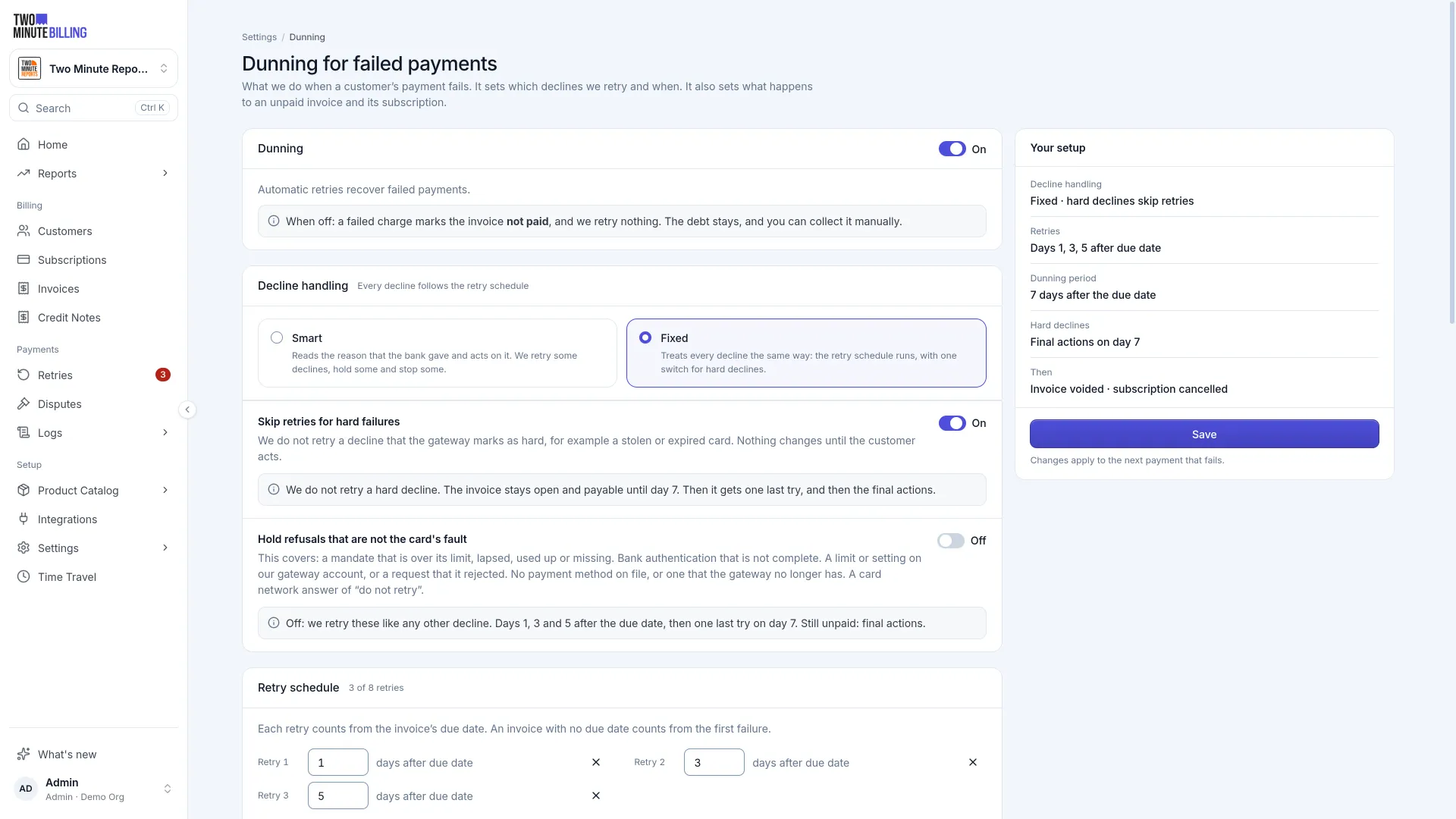
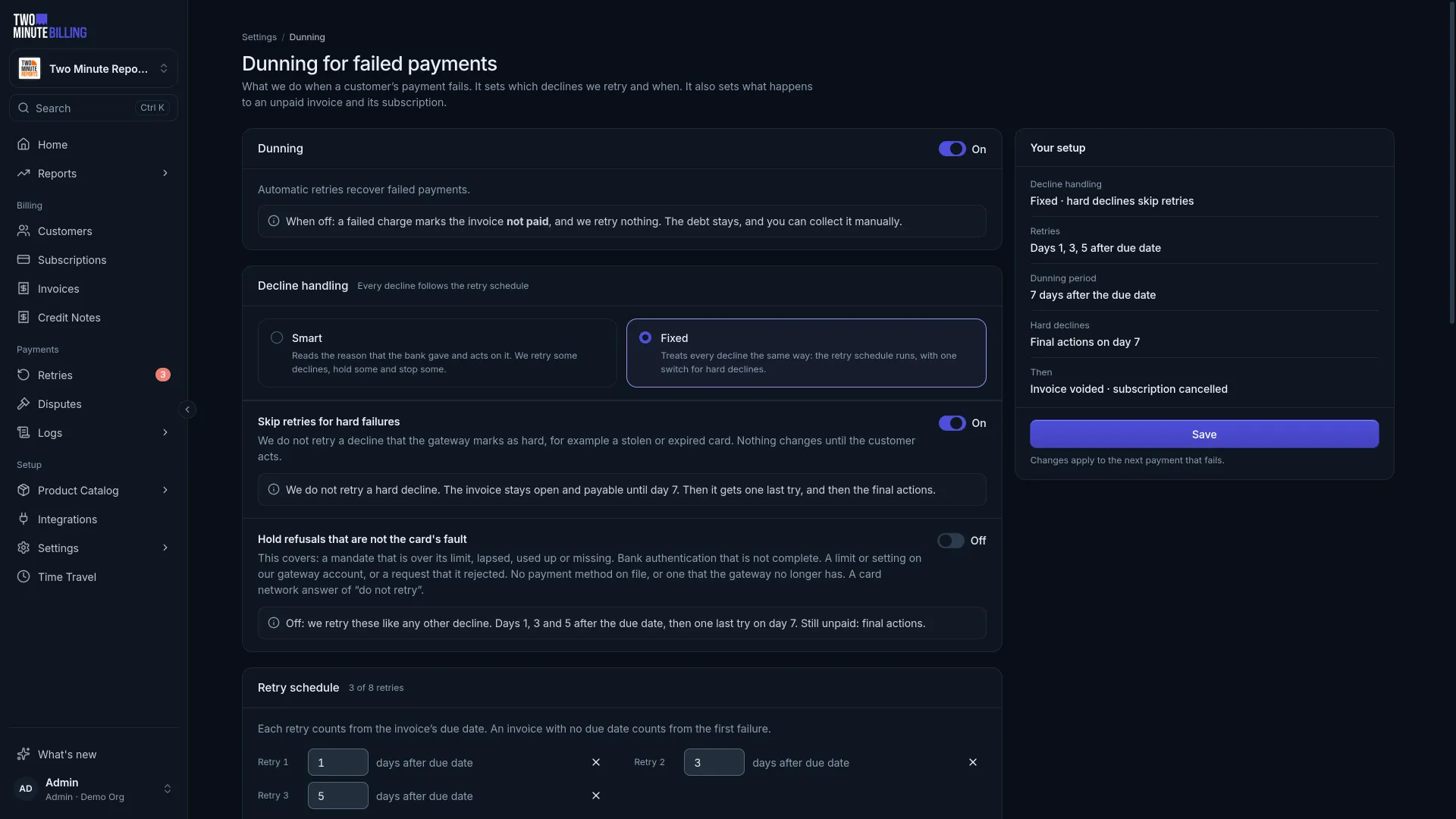
Settings → Dunning in the business.
| Setting | What to consider |
|---|---|
| Decline handling | Fixed follows your retry schedule for every failure. Smart reads why the payment was declined: temporary problems such as insufficient funds are retried, problems only the customer can fix (an expired card, a cancelled mandate) pause the invoice and ask them to update their payment method, and declines that must not be retried, such as a card reported stolen, stop at once. |
| Adaptive retry timing | Smart mode only, and off until you turn it on. Times each retry by the decline reason instead of your schedule: a network hiccup within hours, insufficient funds on the next likely payday (the 1st, the 15th or month-end), a generic decline a few days apart. Retries land at 10:00 where the card was issued. It follows common practice rather than a guarantee, so compare your collections recovery rate before and after. |
| Retry schedule | Offsets counted from each failure. Something like day 1, day 3, day 7 spreads attempts across different points in your customer's pay cycle. |
| Stop on hard declines | Fixed mode. A card the bank declined outright will not start working. Retrying it annoys your customer and irritates their bank. Leave this on. |
| Charge when a card is added | Charges what is owed the moment the customer saves a working card, instead of waiting for the next retry. This is what makes "update your card" actually fix it. |
| What happens at the end | Whether the invoice is left owed, voided or written off — and, separately, whether the subscription cancels or survives. |
Whatever you set, card-network retry rules are always followed. When the network says not to retry a card, automatic retries stop and the invoice waits for the customer to add a new card. A card declined 10 times in 24 hours, or 15 times in 30 days, waits before its next automatic attempt. Retry now always sends the charge to the gateway, so use it only when the customer says the card works again. Retrying a card the network refused can bring network fees.
Skip small amounts
Minimum amount due sets, per currency, the least that must still be owed on an invoice before dunning chases it. Below it, there are no retries and no reminders, though the first payment attempt on a new invoice still happens. A part payment can take an invoice below the minimum. With no minimum, dunning applies to every unpaid invoice.
Different rules for some customers
Your dunning settings apply to every customer. When some customers need different rules, such as a longer schedule for enterprise accounts that pay by bank transfer, give them a dunning policy.
Create the policy
Open Settings → Dunning, and under Customer policies open Dunning policies. Select Create policy. The fields start with your business settings, so change only what must be different. Give it a Name your team will recognize, and a Code, which is its key in the API and must be unique in the business.
Assign it to a customer
Open the customer, select Edit customer, and select the policy in Dunning policy. Business settings is the default.
A policy covers the per-invoice settings: decline handling, the retry schedule, the minimum amount due and what happens at the end. The two Payment methods switches stay business-wide.
A change to a policy applies to the next payment that fails for its customers. Moving a customer to another policy in the middle of dunning keeps the next retry already scheduled; the retries after it follow the new policy, and so does the final action.
To retire a policy, select Archive in the list. You cannot archive a policy that customers still use, so change their dunning policy first. An archived policy cannot be assigned, but you can still open and change it.
To manage policies with the API, see Dunning policies.
Leave a customer out of dunning
On the customer's edit page, Exclude from dunning stops retries and payment reminders for that customer. The first payment attempt on a new invoice still happens. An excluded customer stays excluded whatever their dunning policy. When you turn it off, dunning continues on their open invoices, with the remaining schedule moved later by the time it was off, so nothing ends at once.
Work the queue
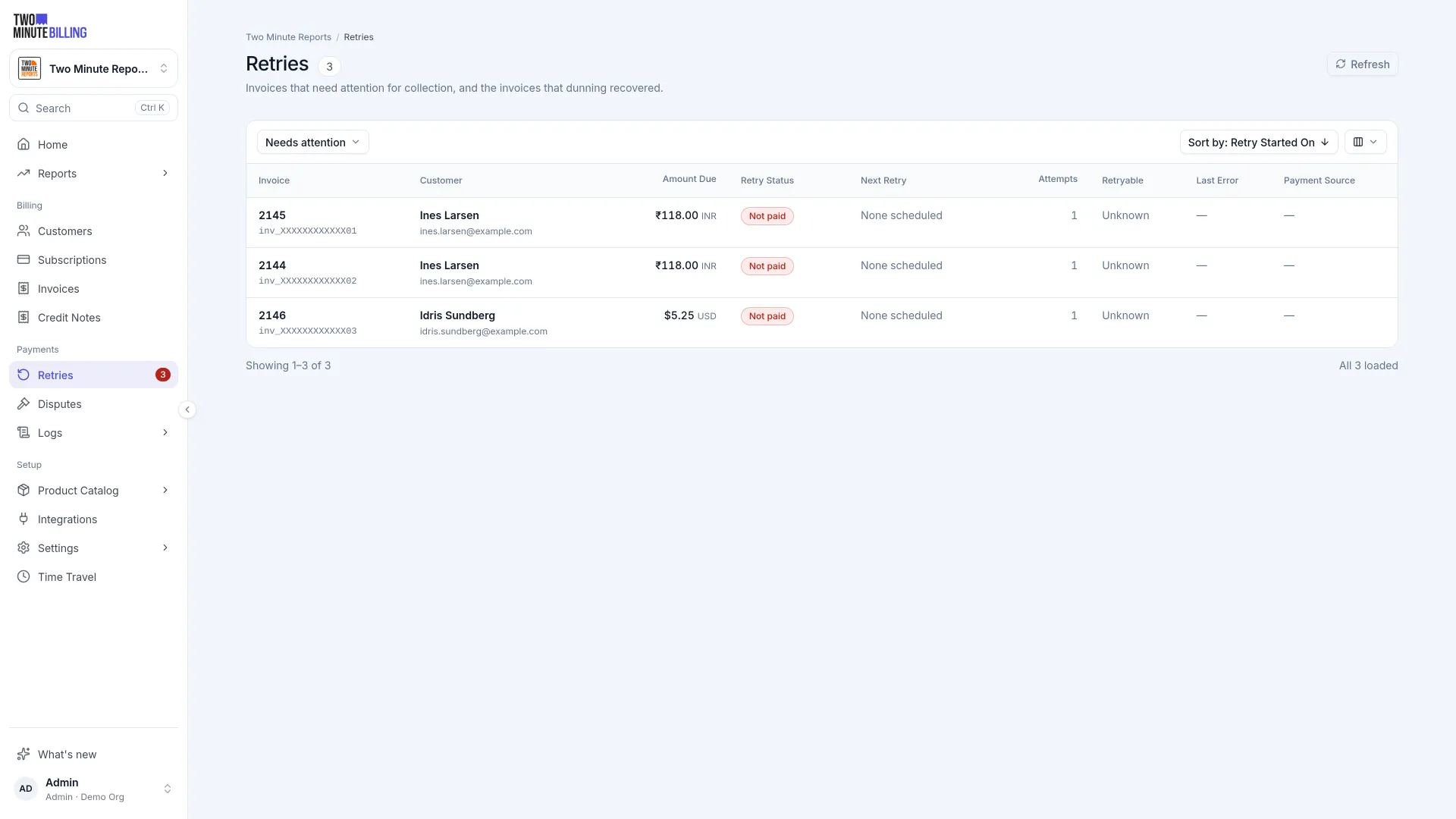
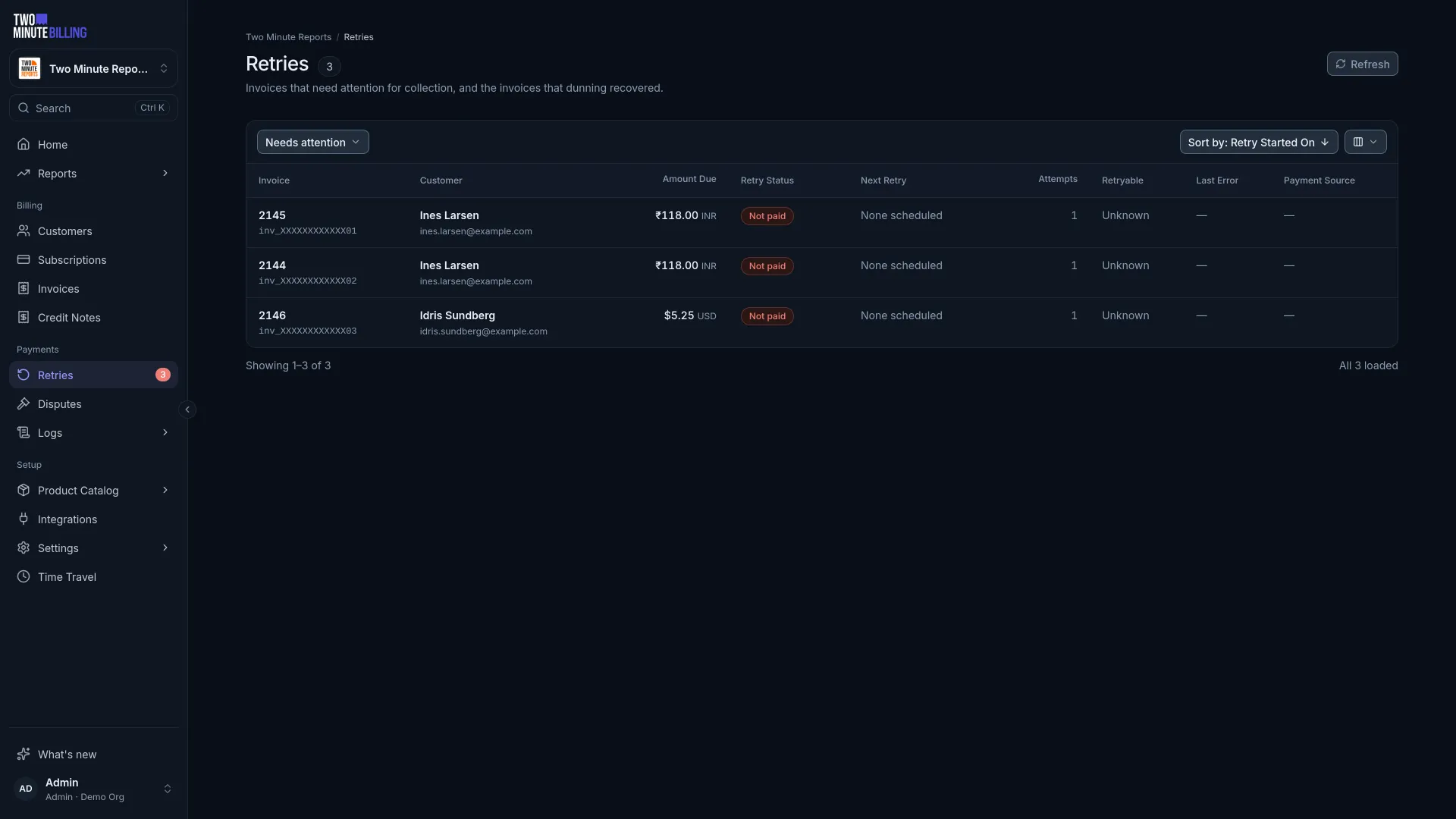
Retries lists every invoice currently being chased, and the number next to it is your backlog. For any one of them you can:
- Retry now, out of schedule, when the customer says they have fixed it
- Pause while they sort something out with their bank — the invoice stays owed, you just stop chasing
- Stop chasing entirely
- Write off if you have given up
Prevent it instead
The cheapest failed payment is the one that never happens. Two Minute Billing knows when a saved card is about to expire, and emailing those customers before the card lapses removes the failure entirely.
Related
Invoices and credits
Read an invoice and its status, collect one invoice or several at once, keep numbered receipts, and give money back with a credit note or a refund.
Overview
Connect your own payment gateway account so Two Minute Billing can collect payments, and route each currency to the account that should handle it. Step-by-step guides for each gateway.