Checkout.com


Two Minute Billing charges saved cards through your Checkout.com account. When a customer pays an invoice now, the payment form also shows Google Pay if Checkout.com enables it for your account. Apple Pay on the Checkout.com Hosted Payments Page is coming soon. You keep your Checkout.com rates, and Checkout.com pays out to your bank as usual.
Before you start
- A Checkout.com account. Use the sandbox to test; live payments need a live account.
- Checkout.com gives you sandbox keys (
sk_sbox_…,pk_sbox_…) and live keys. Connect the sandbox keys to a test business and the live keys to a live business. Two Minute Billing refuses a mix. - You need the Owner or Admin role in Checkout.com to read the entity ID.
- Every customer who saves a card needs an email address. Checkout.com refuses a card without one.
- For Google Pay: a Google Pay Merchant ID from the Google Pay & Wallet Console. Checkout.com enables Google Pay when you send it to your account manager.
- For Apple Pay: Checkout.com must enable the Hosted Payments Page and Apple Pay on it for your account. Ask your account manager or solutions engineer.
- You need permission to manage payment gateways in Two Minute Billing. The owner and admin roles have it.
Find your API keys
In the Checkout.com Dashboard, select Developers in the left navigation and open the Keys tab.
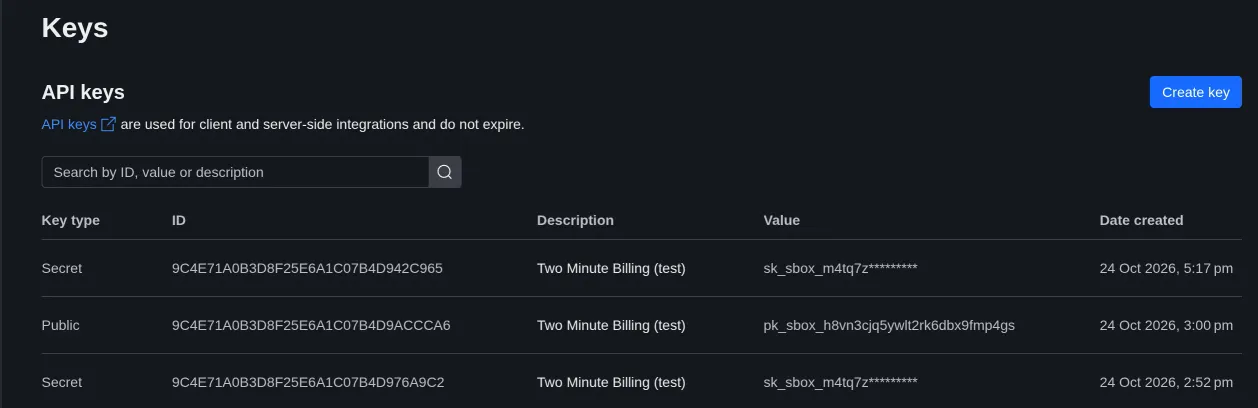
You need six values:
| Field | Where to find it | Looks like |
|---|---|---|
| Secret key | Checkout.com Dashboard → Developers → Keys. Use sk_sbox_ keys for a test business and live keys for a live business. | sk_… |
| Public key | — | pk_… |
| Processing channel ID | Checkout.com Dashboard → Settings → Processing channels. | pc_… |
| API prefix | The 8 characters before .api.checkout.com in your base URL. Find it in Checkout.com Dashboard → Developers → Overview. You can also paste the full base URL. | abcd1234 |
| Default billing country | Checkout.com needs a billing country to open the card form. We use the country of the customer's billing address. If the customer has no billing address, we use this two-letter country code. | US |
| Entity ID | The ID of the Checkout.com entity that owns the processing channel (ent_…). We need it to register the webhook. In the Checkout.com Dashboard, click your account name at the top left, select the entity in the Entity column and click Switch view. Then click the Settings icon and select Account details. You must have the Owner or Admin role. | ent_… |
Permissions
| Scope | Two Minute Billing uses it to |
|---|---|
gateway (payments, payment details, captures, refunds, voids) | Charge, capture, cancel, refund and find payments |
payment-sessions | Show the card form to your customers |
vault (customers, instruments) | Make customers, and read and remove saved cards |
flow:workflows | Register the webhook for you |
If you made the public key with custom scopes, it needs payment-sessions:pay and
vault-tokenization: the payment form and Google Pay use them in the customer's browser.
Apple Pay opens the Hosted Payments Page (/hosted-payments) with the secret key. Checkout.com's
API reference names no extra scope for it; Checkout.com turns the page on for your account.
Two Minute Billing does not call the disputes API, so the disputes scopes are not necessary.
To read the Entity ID, you need the Owner or Admin role in the Checkout.com Dashboard.
Connect it in Two Minute Billing
- Open Settings → Payment gateways and click Add gateway.
- Select Checkout.com and paste the six values from the table above.
- Select the currencies and the payment methods this account handles.
- Click Create gateway account.
Then open the account and click Check credentials. Healthy means Checkout.com accepted the secret key on your API prefix.
The payment methods you can turn on for Checkout.com:
- Cards — Pay now also shows Google Pay. To enable it, send your Google Pay Merchant ID to your Checkout.com account manager. Apple Pay is coming soon.
Add Google Pay
Google Pay shows only when a customer pays an invoice now. It is a card payment to Checkout.com, so refunds and disputes work as they do for cards. Two Minute Billing does not save Google Pay for renewals: to pay renewals automatically, the customer saves a card.
- In the Google Pay & Wallet Console, copy your Google Pay Merchant ID.
- Send it to your Checkout.com account manager and ask them to enable Google Pay for your processing channel.
You do not change anything in Two Minute Billing. When Checkout.com enables Google Pay, the payment form shows it.
Add Apple Pay
Coming soon. Apple Pay on Checkout.com is not available yet. We did not complete its tests.
Apple Pay shows only when a customer pays an invoice now, in a browser that can pay with Apple Pay (Safari with a card in Apple Wallet). The customer selects Apple Pay, pays on the Checkout.com Hosted Payments Page and comes back to the portal. Your domain does not need Apple Pay verification: the page is on Checkout.com's domain.
- Ask your Checkout.com account manager to enable the Hosted Payments Page for your processing channel.
- Ask them to enable Apple Pay on the Hosted Payments Page.
Currencies
Two Minute Billing offers these 141 currencies on Checkout.com:
AED, AFN, ALL, AMD, AOA, AUD, AWG, AZN, BAM, BBD, BDT, BHD, BIF, BMD, BND, BOB, BRL, BSD, BTN, BWP, BZD, CAD, CDF, CHF, CLP, CNY, COP, CRC, CVE, CZK, DJF, DKK, DOP, DZD, EGP, ERN, ETB, EUR, FJD, FKP, GBP, GEL, GIP, GNF, GTQ, GYD, HKD, HNL, HTG, HUF, IDR, ILS, INR, IQD, ISK, JMD, JOD, JPY, KES, KGS, KHR, KMF, KRW, KWD, KYD, KZT, LAK, LKR, LRD, LSL, LYD, MAD, MDL, MGA, MKD, MMK, MNT, MOP, MRU, MUR, MVR, MWK, MXN, MYR, MZN, NAD, NGN, NIO, NOK, NPR, NZD, OMR, PAB, PEN, PGK, PHP, PKR, PLN, PYG, QAR, RON, RSD, RWF, SAR, SBD, SCR, SEK, SGD, SHP, SLE, SOS, SRD, STN, SVC, SZL, THB, TJS, TMT, TND, TOP, TRY, TTD, TWD, TZS, UAH, UGX, USD, UYU, UZS, VES, VND, VUV, WST, XAF, XCD, XCG, XOF, XPF, YER, ZAR, ZMW
Your processing channel takes the currencies that Checkout.com set up for your account.
If you leave Currencies empty on the gateway account, the account takes each currency of your business that is on this list.
Webhooks
Checkout.com tells Two Minute Billing about things that happen after a charge: a capture or a refund that completes later, a payment that is returned, a dispute, a saved card that the card network updates.
Two Minute Billing registers the webhook with Checkout.com for you when you save the account. Nothing to copy.
If the gateway account page shows the webhook as not configured:
- Click “Register with Checkout.com” on the gateway account page. We create the webhook workflow and keep its signature key.
- Optional: make sure that it shows under Developers → Webhooks in Checkout.com.
The workflow sends only the events of the processing channel on the gateway account.
Test it
In your test business, create a customer with an email address and save the test card
4242 4242 4242 4242 with any future expiry date and any three-digit CVV. If the 3D Secure test
page opens, enter the password Checkout1!. Collect an invoice: it is marked paid, and Logs
shows the call to Checkout.com and Checkout.com's answer.
To test Google Pay, sign in to a Google account in Chrome and join Google's test card suite. Open an invoice in the customer portal, click Pay now and select Google Pay. Select a test card in the Google Pay sheet. The invoice is marked paid. Google Pay is a card payment, so the transaction shows Card under Paid with.
To test Apple Pay, use Safari on a device that has an Apple sandbox tester account with one of Apple's test cards in Wallet. Open an invoice in the customer portal, click Pay now, select Apple Pay and click Continue. Pay on the Checkout.com page. You come back to the portal, and the invoice is marked paid.
Go live
- In your live Checkout.com account, copy the live secret key and public key, the live processing channel ID, the live API prefix and the live entity ID.
- In your live business, add Checkout.com with those values.
- Two Minute Billing creates a separate webhook workflow for live. Check it under Developers → Webhooks in Checkout.com.
- For Google Pay: make sure that Checkout.com enabled Google Pay on the live account, and request production access in the Google Pay & Wallet Console.
- For Apple Pay: make sure that Checkout.com enabled the Hosted Payments Page and Apple Pay on the live account.
Troubleshoot
- Check credentials says "We could not check the credentials." with "Checkout.com refused the secret key". The secret key is wrong, its scopes do not include the APIs Two Minute Billing uses, or the API prefix is wrong. Copy the key and the prefix again and update the gateway account.
- Check credentials says "These are Checkout.com live keys. A test business needs sandbox
keys". Copy the sandbox keys (
sk_sbox_…,pk_sbox_…), or connect the live keys to a live business. A live business shows the opposite message. - Check credentials says "Checkout.com entity_id must look like ent_ followed by 26 letters and digits". Copy the entity ID again from Account details, as the table above describes.
- Saving a card fails with "Checkout.com needs the customer's email address to save a card." Add an email address to the customer, then try again.
- The payment form shows no Google Pay. Checkout.com has not enabled Google Pay for your account, or the customer's browser has no Google Pay wallet. Google Pay never shows when a customer saves a card.
- Pay now shows no Apple Pay. The customer's browser cannot pay with Apple Pay (it is not Safari, or Apple Wallet has no card). Apple Pay never shows when a customer saves a card.
- The customer sees "a problem with the payment configuration" after selecting Apple Pay. Checkout.com refused the Hosted Payments Page. Logs shows its answer. Ask Checkout.com to enable the Hosted Payments Page and Apple Pay on it.
Related
Braintree
Connect your Braintree account to Two Minute Billing: find your API keys and merchant accounts, connect them, and add the webhook in Braintree. Cards with 3D Secure, PayPal and Venmo.
Adyen
Connect your Adyen merchant account to Two Minute Billing: make an API credential, connect it, and let Two Minute Billing register the webhook. Cards in the currencies your merchant account accepts, and Google Pay on pay now. SEPA Direct Debit is coming soon.