

Go live
Every business has a test mode and a live mode. Going live does not convert anything: you copy what you built in test mode into the live mode of the same business, connect live payment credentials, and bill your real customers there.
Check your plan
On the hosted service, a new account starts on the free plan, with live mode on and every feature. It is free while you make less than the Free plan's monthly limit. Then a flat monthly price. There is no time limit. No credit card required.
When you bill more, open Settings → Billing → Plan and billing and select a paid plan. You pay through a hosted checkout page, and the larger limit applies as soon as the plan is active. There is no review and no waiting.
- Every plan has every feature. Plans differ only in how much you bill each month.
- Billing more than your plan covers in a month shows a notice on the Billing page. Your billing carries on.
- If you stay above the limit, we can make your organization read-only until you change plan. Your customers are still billed.
- If you cancel a paid plan, you go back to the free plan. Live mode stays on.
- Only an owner or an administrator can select or change the plan.
Copy your set-up to live mode
Switch to test mode with the Mode switch at the foot of the sidebar. In test mode, open Settings → Import & export data and use Transfer to copy your set-up to the live mode.
Select the sections you need, then Check changes to see each change before you copy:
| Section | What it copies |
|---|---|
| Catalog | Products, prices and product groups |
| Coupons | Coupon codes and their item limits |
| Taxes | Tax profiles, rates and registrations |
| Settings | Billing behavior: payment terms, dunning, proration, cancellation |
| Company profile | Address, tax registration number, invoice issuer, default HSN/SAC |
| Email sending | Sender details and your SMTP or Amazon SES settings, not the templates |
A transfer never copies customers, subscriptions, invoices or money. Those stay in the mode where they were created. It also keeps the destination's own invoice prefixes and checkout URLs.
A live business takes only what is new. To change its existing settings with a copy, an owner or admin selects Also update what is there and types the business name to confirm.
pro and pro-monthly. Because a
transfer copies them unchanged, your own code, your runbooks and your support team can use the same
ids in test mode and live mode.Before you charge a real card
Switch to live mode and work through these in Settings.
Connect a live payment gateway
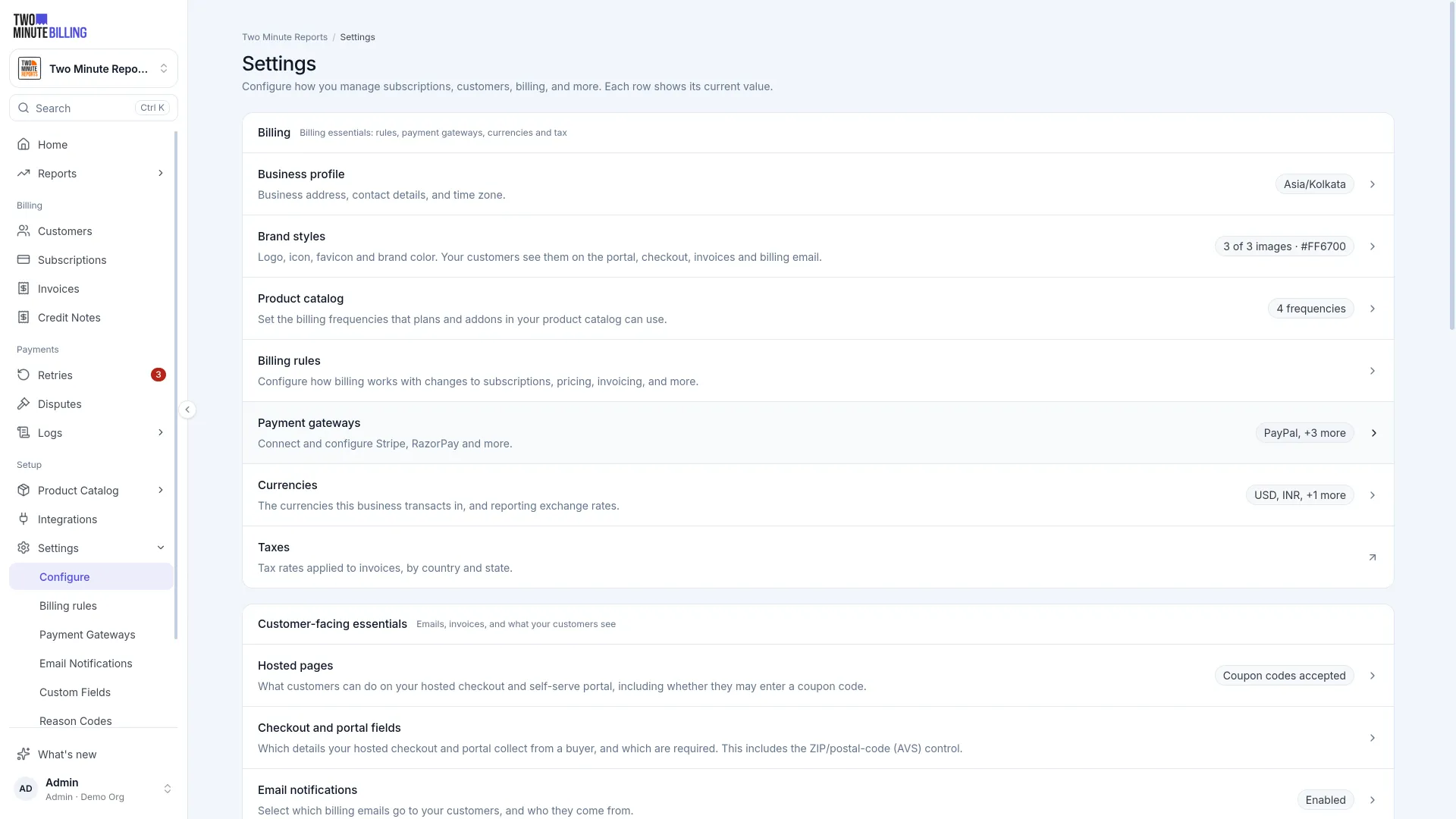
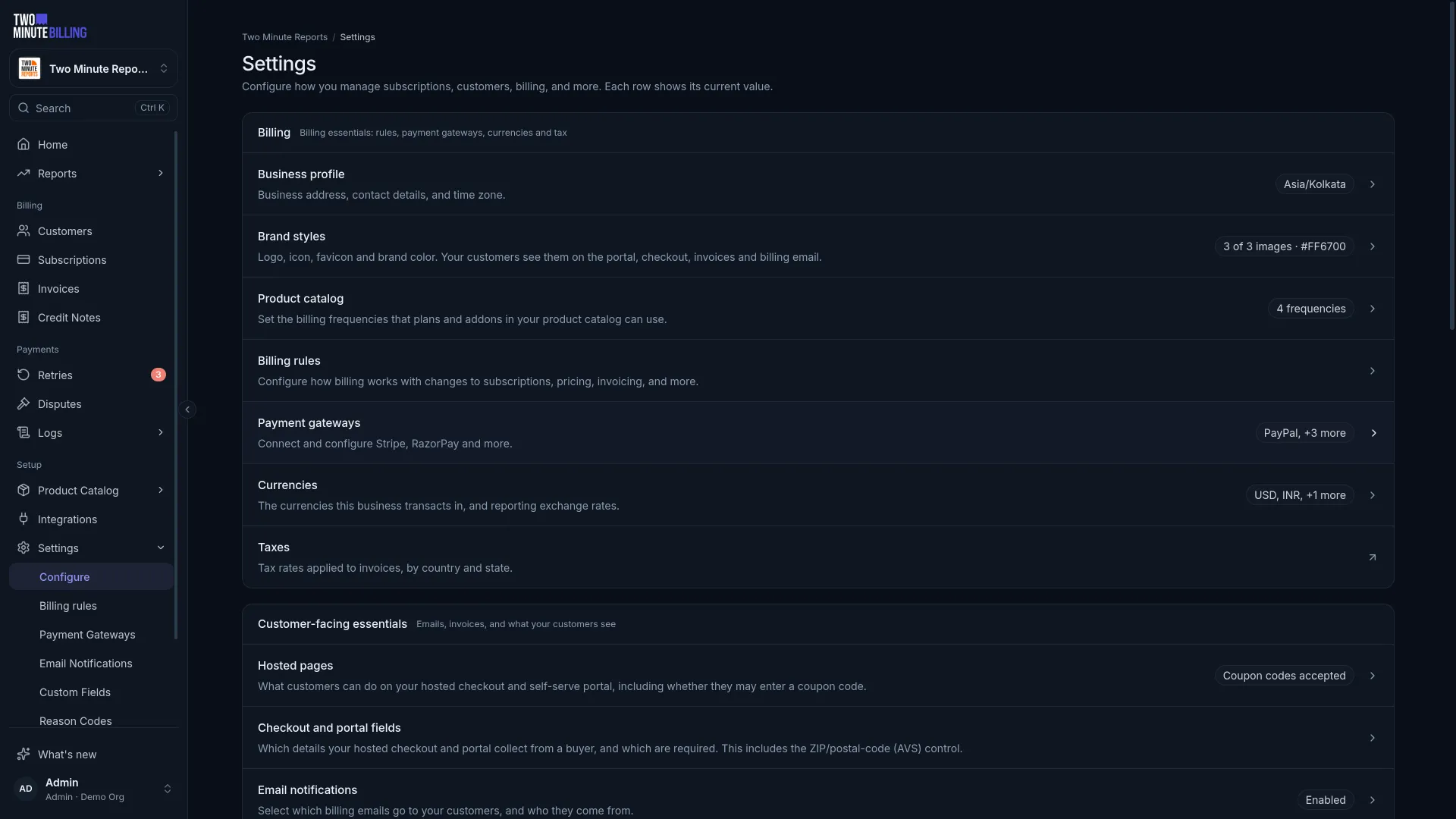
Open Settings → Payment gateways and connect your account with its live credentials. Test credentials do not work in live mode. Until a gateway is connected, live mode can raise invoices but cannot collect them. See Connect a payment gateway.
Check your tax set-up
Check your registrations, rates and the countries you charge tax in. Tax is calculated for each invoice from the customer's address, and an issued invoice keeps the rates that applied that day.
Check your invoice details
Check your legal entity name, address, tax number and invoice numbering. These print on documents your customers keep for their own accounts. Invoice numbering in live mode starts at 1, separate from test mode.
Set your billing rules
Especially what happens when a payment fails: how many retries, how far apart, and what happens to the invoice and the subscription when all of them fail. See Recover failed payments.
Check your emails
Send yourself a test of each billing email. They go out under your name, so read them as a customer would.
Invite your team
Give each person who handles billing and support their own sign-in. Every action is recorded against the person who did it. See Your team and the audit log.
What you cannot undo
An issued invoice does not change. To correct one, you issue a credit note — a second document with its own reason. That keeps your records clear when a customer disputes a charge.
Money that moved stays on the record. Archiving a customer stops new activity. It does not delete their history.
Related
First payment
Add a customer, subscribe them to a plan, and watch the invoice get raised and paid in test mode, with test cards that succeed or decline when you want.
Subscriptions
Add customers, subscribe them to plans, change what they pay mid-cycle, and pause or cancel, with proration worked out and shown before you confirm.