
Square


Two Minute Billing charges cards on file through your Square account. You keep your Square rates, and Square pays out to your bank as usual. When a customer pays an invoice once with Pay now, Square also offers Google Pay, Cash App Pay, Afterpay and ACH. Apple Pay is coming soon. These are not saved for renewals: renewals charge the card on file.
Before you start
- A Square account and an application in the Square Developer Console. The Sandbox works at once and comes with a test location.
- Square gives each application two sets of credentials: Sandbox and Production. Connect the Sandbox credentials to a test business and the Production credentials to a live business. Two Minute Billing refuses a mix.
- Each Square location charges in one currency: the currency of its country. Connect one gateway account for each location, and select that currency on it.
- You need permission to manage payment gateways in Two Minute Billing. The owner and admin roles have it.
Find your API keys
In the Square Developer Console, open your application and select Credentials in the left pane. At the top of the page, select Sandbox or Production to match the business you are connecting.
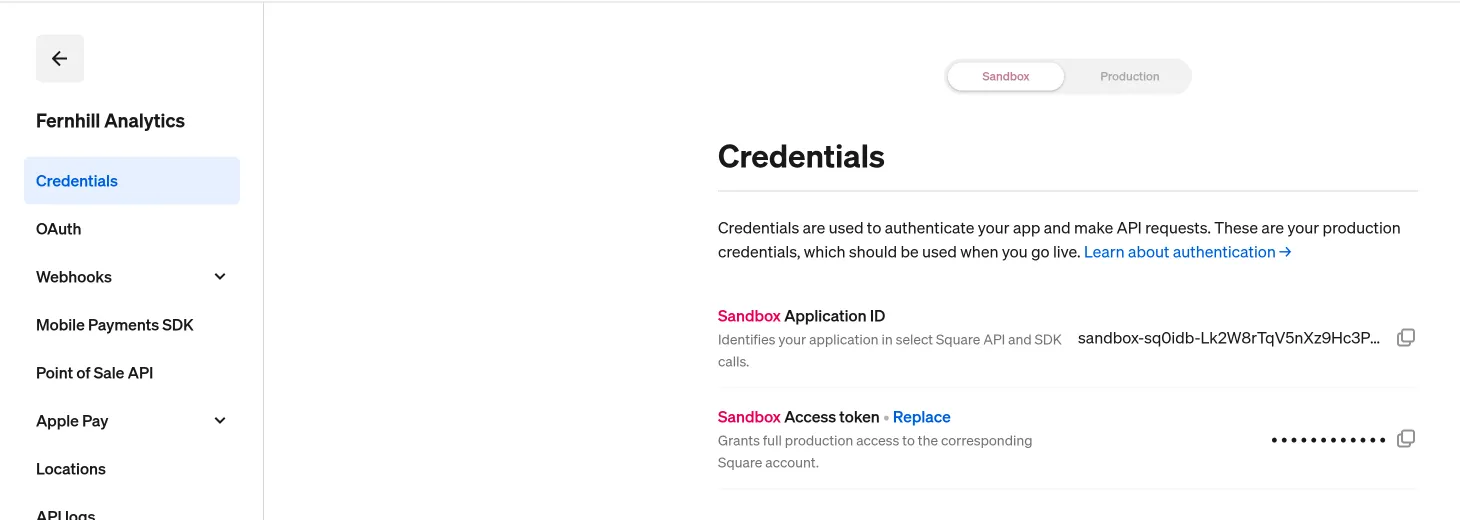
Then select Locations in the left pane and copy the ID of the location that takes the payments.
You need three values:
| Field | Where to find it | Looks like |
|---|---|---|
| Access token | Square Developer Console → your application → Credentials. Use the Sandbox access token for a test business and the Production access token for a live business. | — |
| Application ID | On the same page. A sandbox Application ID starts with sandbox-sq0idb-. | sq0idp-… |
| Location ID | Square Developer Console → your application → Locations. Each location charges in one currency: the currency of its country. | — |
Permissions
With that token, Two Minute Billing uses these Square permissions:
| Square permission | Two Minute Billing uses it to |
|---|---|
PAYMENTS_WRITE, PAYMENTS_READ | Charge, complete, cancel and refund payments, and save and disable cards |
CUSTOMERS_WRITE, CUSTOMERS_READ | Make and find the customer in Square |
MERCHANT_PROFILE_READ | Read the location and its currency |
ORDERS_WRITE, ORDERS_READ | Make the Square checkout page for Apple Pay, and read its order when Square reports the payment |
Webhook: Two Minute Billing makes the webhook subscription with the same token and selects the payment, refund, dispute and card events. The notification URL must use HTTPS.
Connect it in Two Minute Billing
- Open Settings → Payment gateways and click Add gateway.
- Select Square and paste the Access token, the Application ID and the Location ID.
- Select the currencies and the payment methods this account handles.
- Click Create gateway account.
Then open the account and click Check credentials. Healthy means Square accepted the token, and the location is active and can take cards.
The payment methods you can turn on for Square:
- Cards — Apple Pay is coming soon.
Apple Pay
Coming soon. Apple Pay on Square is not available yet. We did not complete its tests.
Apple Pay shows only when a customer pays an invoice now, in a browser that can pay with Apple Pay (Safari with a card in Apple Wallet). The customer selects Apple Pay and pays on a Square checkout page (a payment link), then comes back to the portal. Your domain does not need Apple Pay verification: the page is on Square's domain. You do not change anything in Square or in Two Minute Billing.
Currencies
Two Minute Billing offers these 6 currencies on Square:
AUD, CAD, EUR, GBP, JPY, USD
Each Square location takes one currency: the currency of its country.
If you leave Currencies empty on the gateway account, the account takes each currency of your business that is on this list.
Webhooks
Square tells Two Minute Billing about things that happen after a charge: a payment or a refund that changes later, a refund made in Square, a dispute, a saved card that Square updates or disables.
Two Minute Billing registers the webhook with Square for you when you save the account. Nothing to copy.
If the gateway account page shows the webhook as not configured:
- Click “Register with Square” on the gateway account page. We make the webhook subscription and keep its signature key.
- Square accepts only HTTPS notification URLs.
Test it
In your test business, create a customer and save the test card 4111 1111 1111 1111 with any
future expiry date and the CVV 111. For USD, CAD and GBP, Square also needs a valid postal
code; do not use 99999, which simulates an incorrect one. Collect an invoice: it is marked
paid, and Logs shows the call to Square and Square's answer.
The Square Sandbox does not show Apple Pay on checkout pages: it takes only test cards there. To check the Apple Pay flow in a test business, use Safari, click Pay now, select Apple Pay and pay on the Square page with the test card. The invoice is marked paid when Square's webhook arrives.
Go live
- In the Square Developer Console, select Production on your application's
Credentials page. Click Show and copy the Production access token and the
Application ID (
sq0idp-…). - Copy the ID of your production location under Locations.
- In your live business, add Square with those values.
- Two Minute Billing makes a separate webhook subscription for production. Check it under your application's Webhooks → Subscriptions.
Troubleshoot
- Check credentials says "square: a test business needs the Sandbox Application ID and access token". The values come from Production. Copy the Sandbox ones, or connect them to a live business. A live business shows the opposite message.
- Check credentials shows an error that starts with "Square get_location". The access token or the location ID is wrong, or the location belongs to another application or environment. Copy both again from the same page and mode.
- Check credentials says "We could not check the credentials." with the location status, for example "INACTIVE USD". The location is not active or cannot take cards. Select an active location in Square.
- Pay now shows no Apple Pay. The customer's browser cannot pay with Apple Pay (it is not Safari, or Apple Wallet has no card). Apple Pay never shows when a customer saves a card.
- The Square checkout page shows no Apple Pay button. Square does not support Apple Pay in the location's country, or the page is in the Sandbox. The customer can pay with a card on the same page.
- The account page shows the webhook as not configured. Follow the steps under Webhooks.
Related
Razorpay
Connect your Razorpay account to Two Minute Billing: find your API keys, connect them, and let Two Minute Billing register the webhook. Cards, UPI Autopay and netbanking eMandate in INR.
Braintree
Connect your Braintree account to Two Minute Billing: find your API keys and merchant accounts, connect them, and add the webhook in Braintree. Cards with 3D Secure, PayPal and Venmo.